Polls
TL;DR — A poll is a named grouping of the people it covers, and it comes in two kinds: a custom-map poll (a boundary on the map — you belong by where your address falls) or a custom-file poll (a polling-division number from your import — you belong by the number on your record). Build a poll once, then attach it to a Field activity to reach everyone in it.
What it is
A poll is a named grouping of the addresses and people it covers — one slice of your campaign’s territory that you can hand to a coordinator and work as a unit.
Polls come in two fundamentally different kinds, and the difference changes how a person ends up in one:
- A custom-map poll has a shape on the map. A person belongs to it when their address falls inside that outline — like a boundary drawn around a neighbourhood.
- A custom-file poll has no shape. It comes from a polling-division number in your imported people data: a person belongs to it because that number was assigned to them on import, not because of where they live.
Polls are the building block for field campaigns. Instead of working from one long, unstructured list of addresses, you divide your territory into smaller zones. Each poll can then be handed to a coordinator and worked on its own, and you can track progress for each one separately.
Why polls matter
Polls let you organise door-knocking and ground work by location:
- Divide territory into manageable zones — break a large area into smaller, walkable pieces.
- Assign work by area — one coordinator leads “Poll 5,” another leads “Poll 12.” Each person knows exactly which streets and households they’re responsible for.
- Track progress per area — see how many doors have been knocked, how many people have voted, and what support looks like in each poll.
How polls are created
There are several ways to create polls, and they fall into two fundamentally different kinds — custom-map polls (which have a shape) and custom-file polls (which don’t). The distinction matters because it changes how a person ends up belonging to a poll.
Custom-map polls — defined by a shape on the map
A custom-map poll is an actual area outlined on the map. A person belongs to it when their address falls inside that outline. You create one by drawing on the Map — outline a boundary by hand with the Turf tool, and you can rename or reshape it later. (Step-by-step walkthrough below.)
Custom-map polls are the only kind that work with the map, geographic filtering, and the household-on-a-street view — because only they have a real outline.
Custom-file polls — defined by a number in your imported data
A custom-file poll has no shape on the map. It’s a label that comes from your imported people data: when you import a file, each person can carry a poll (polling-division) number, and CampaignCTRL creates one custom-file poll for each distinct number it sees, named after that number. A person belongs to a custom-file poll because that number was assigned to them in the import file — not because of where they live.
Custom-file polls are useful when your voter data already comes with polling-division numbers and you want to keep working in those exact divisions. Because they have no outline, they can’t be edited on the map, and their membership is fixed by what’s in your import data.
At a glance
| Custom-map poll | Custom-file poll | |
|---|---|---|
| Has a shape on the map | Yes | No |
| How a person joins | Their address falls inside the outline | A poll number was assigned in the import file |
| Created by | Drawing it on the map | Importing a people file with poll numbers |
| Can be edited on the map | Yes (drawn polls) | No |
| Works with map views | Yes | No |
Draw a poll on the Map
The most hands-on way to create a custom-map poll is to outline it yourself. You draw the shape with the Turf tool and save it as a boundary — that saved area is the poll you’ll attach to an activity.
Two names, one shape: the area you draw is saved as a boundary, but when you build an activity it appears under the Poll data source. Boundary is what you save; poll is how an activity uses it.
1. Open the Map and show your addresses
In the left sidebar, click Map. The toolbar on the right has your map tools: Filters, Layers, Turf, Polls, and More.
To see the individual doors you’ll be drawing around, open Layers, switch on Addresses, and click Apply.
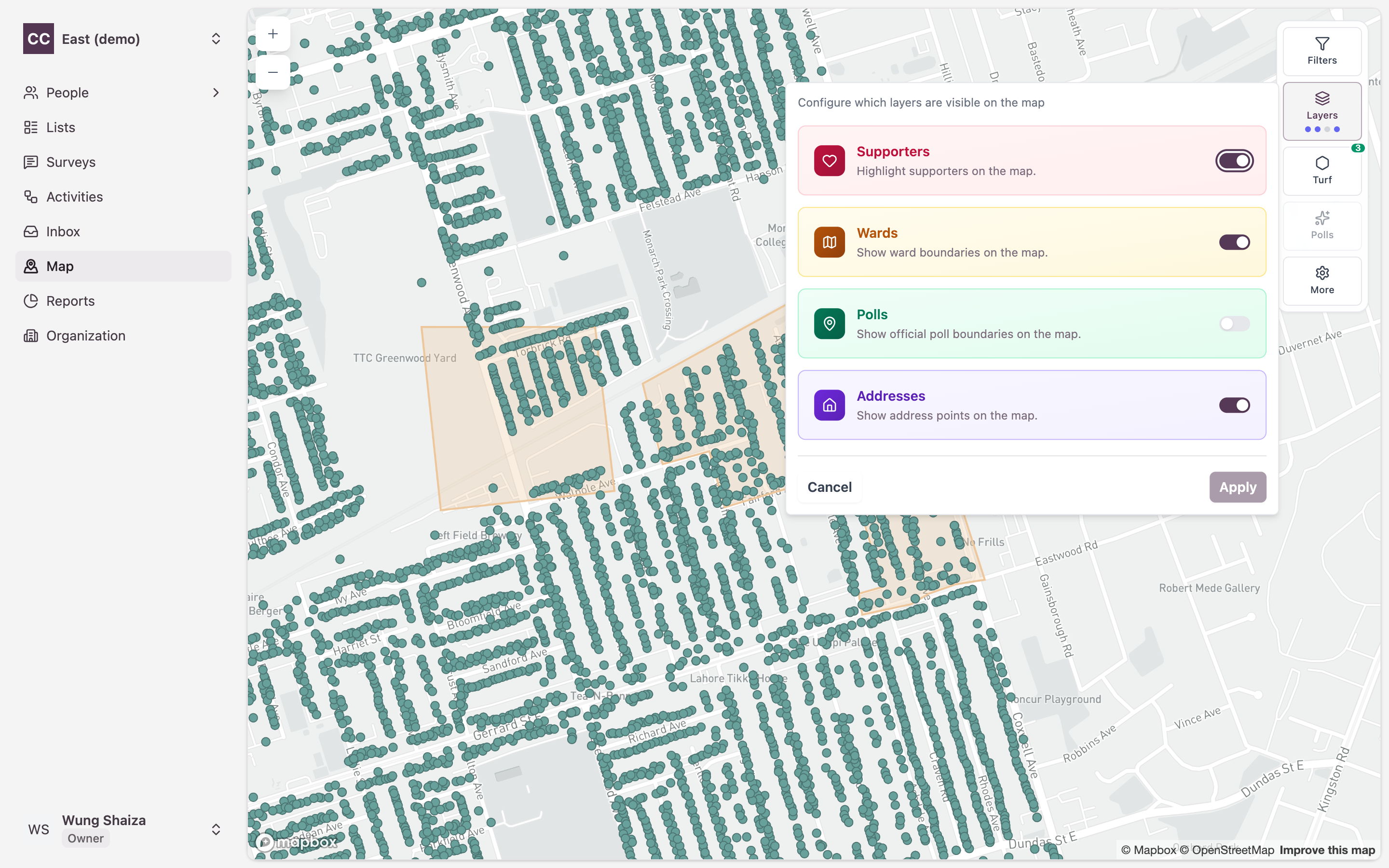
Each dot is now a household from your people list, so you can draw your poll around a real cluster of addresses.
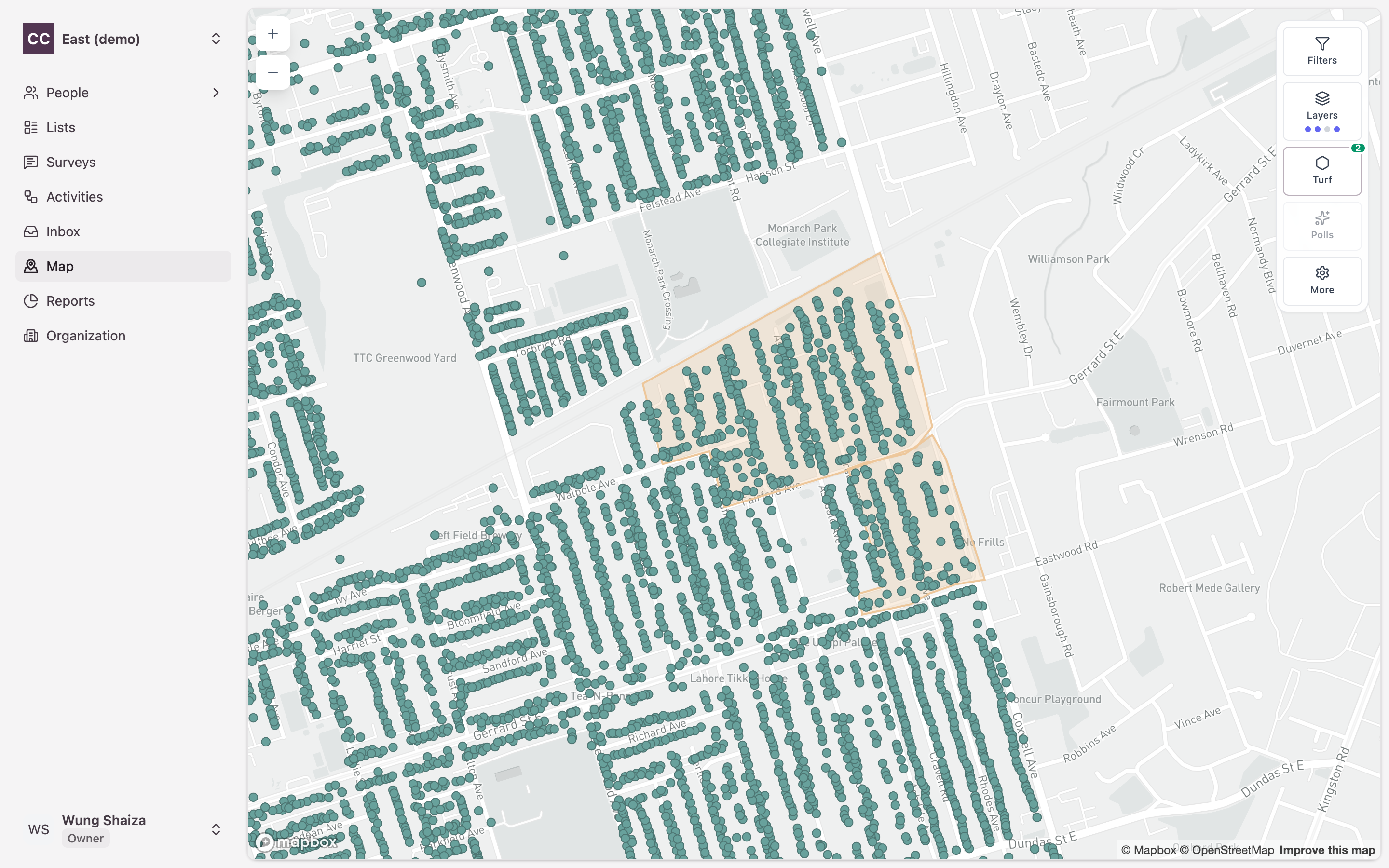
2. Start a new area
Click Turf in the toolbar. The panel lists any areas you’ve already saved. Click Draw new turf at the bottom.
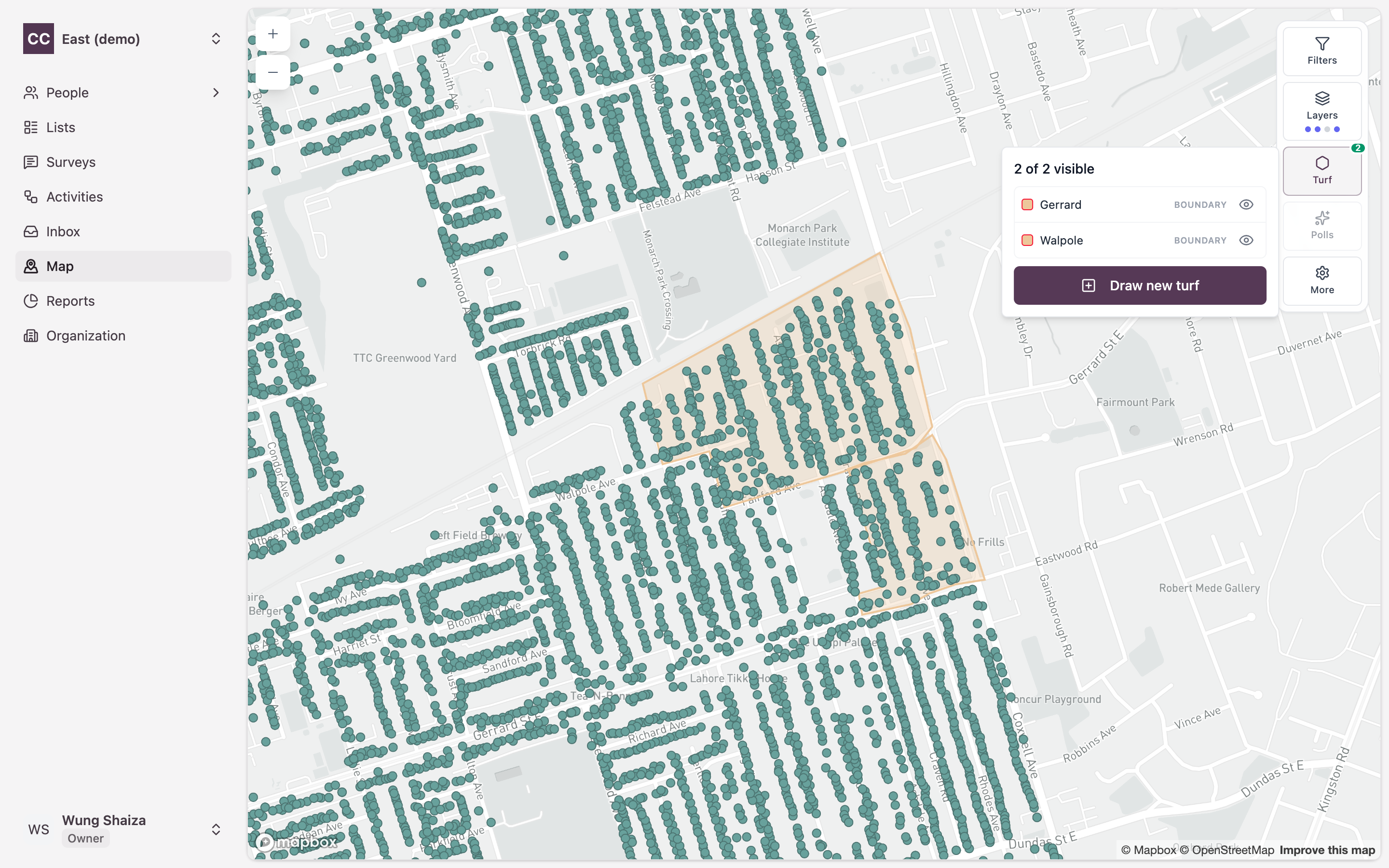
The map switches into drawing mode.
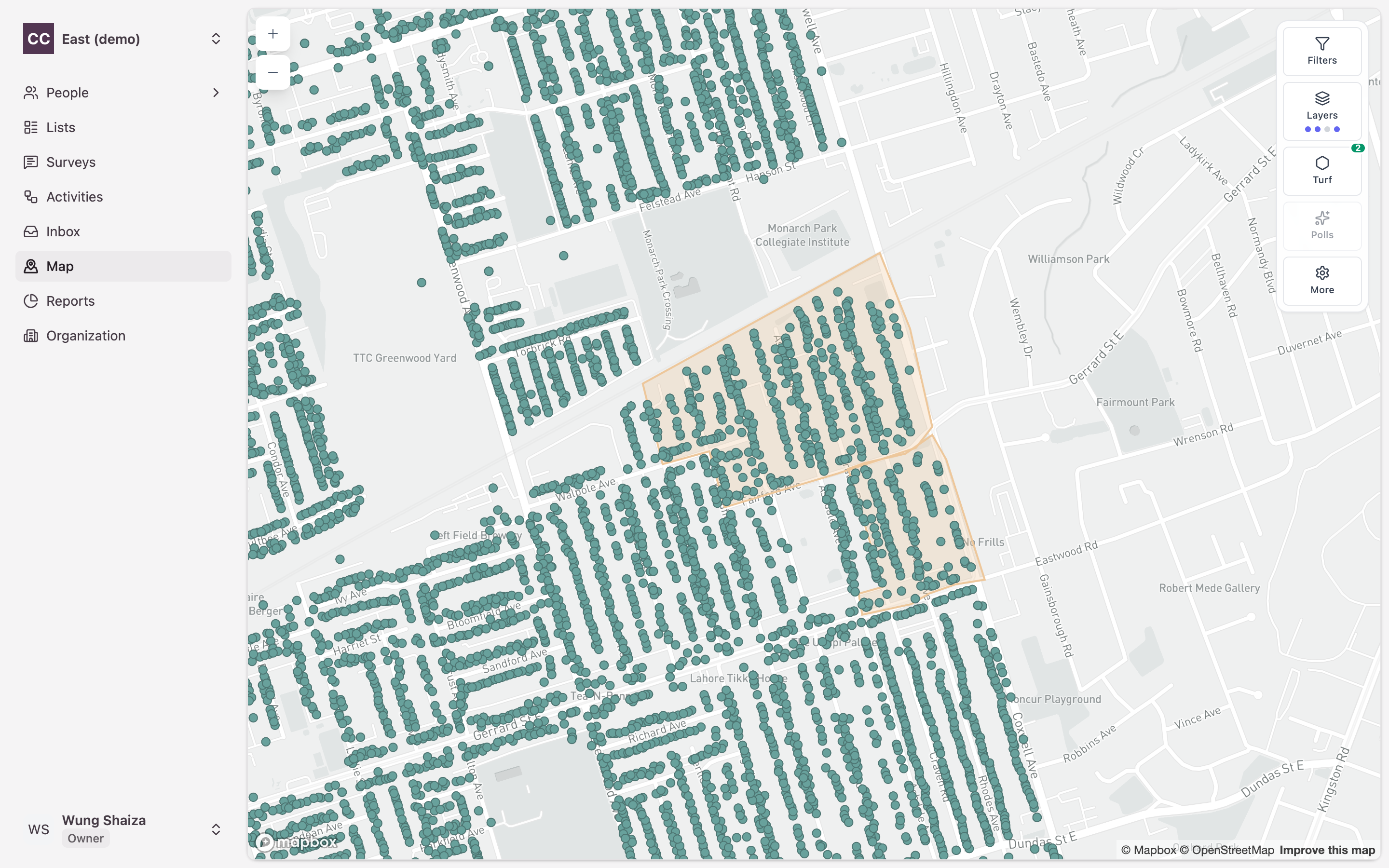
3. Draw the shape
Click on the map to drop each corner of your area. Double-click the last point to close the shape.
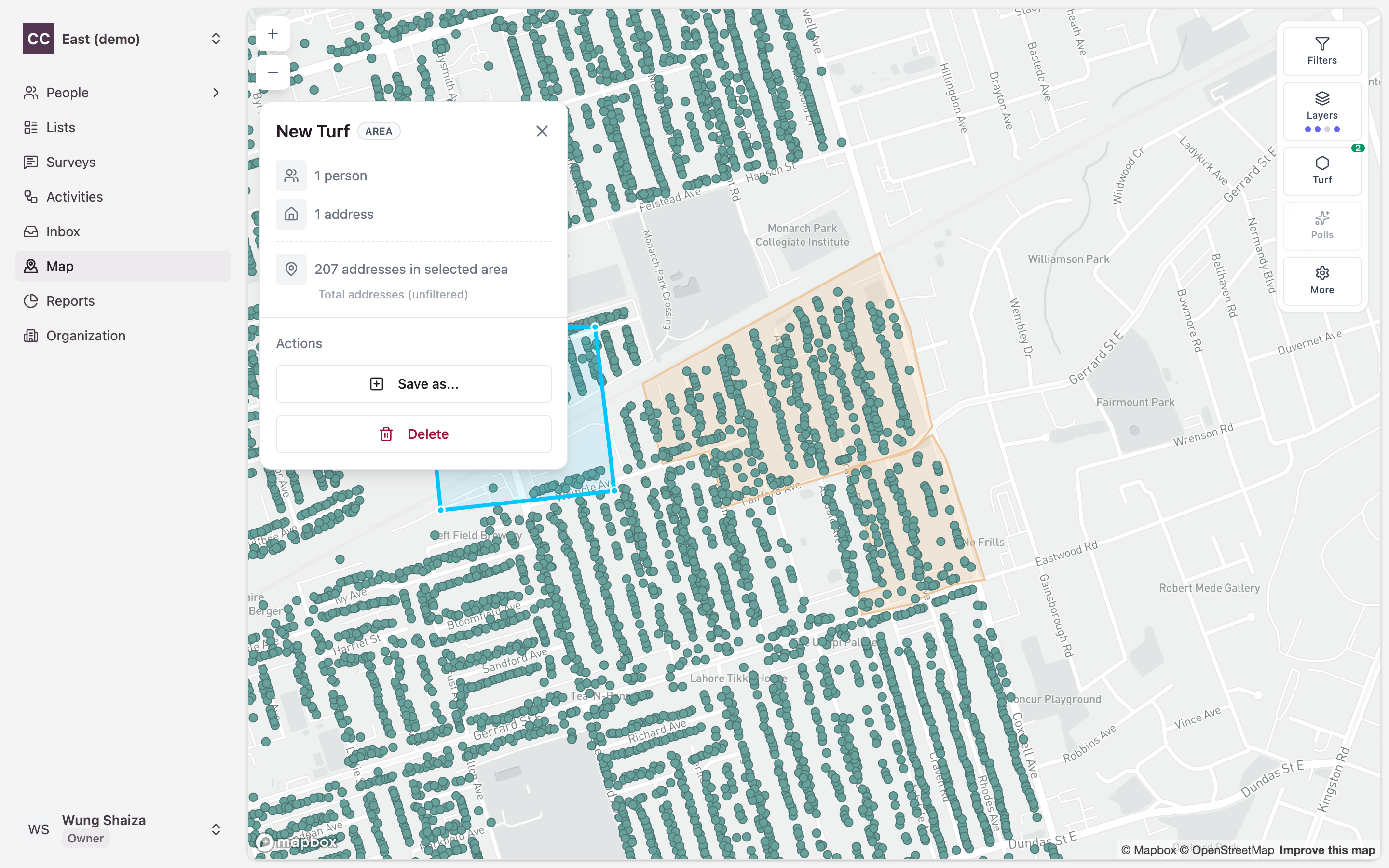
A Selected turf panel slides in showing the area you outlined, plus how many people and addresses fall inside it.
4. Save it as a boundary
In the panel, click Save as… and choose Boundary.
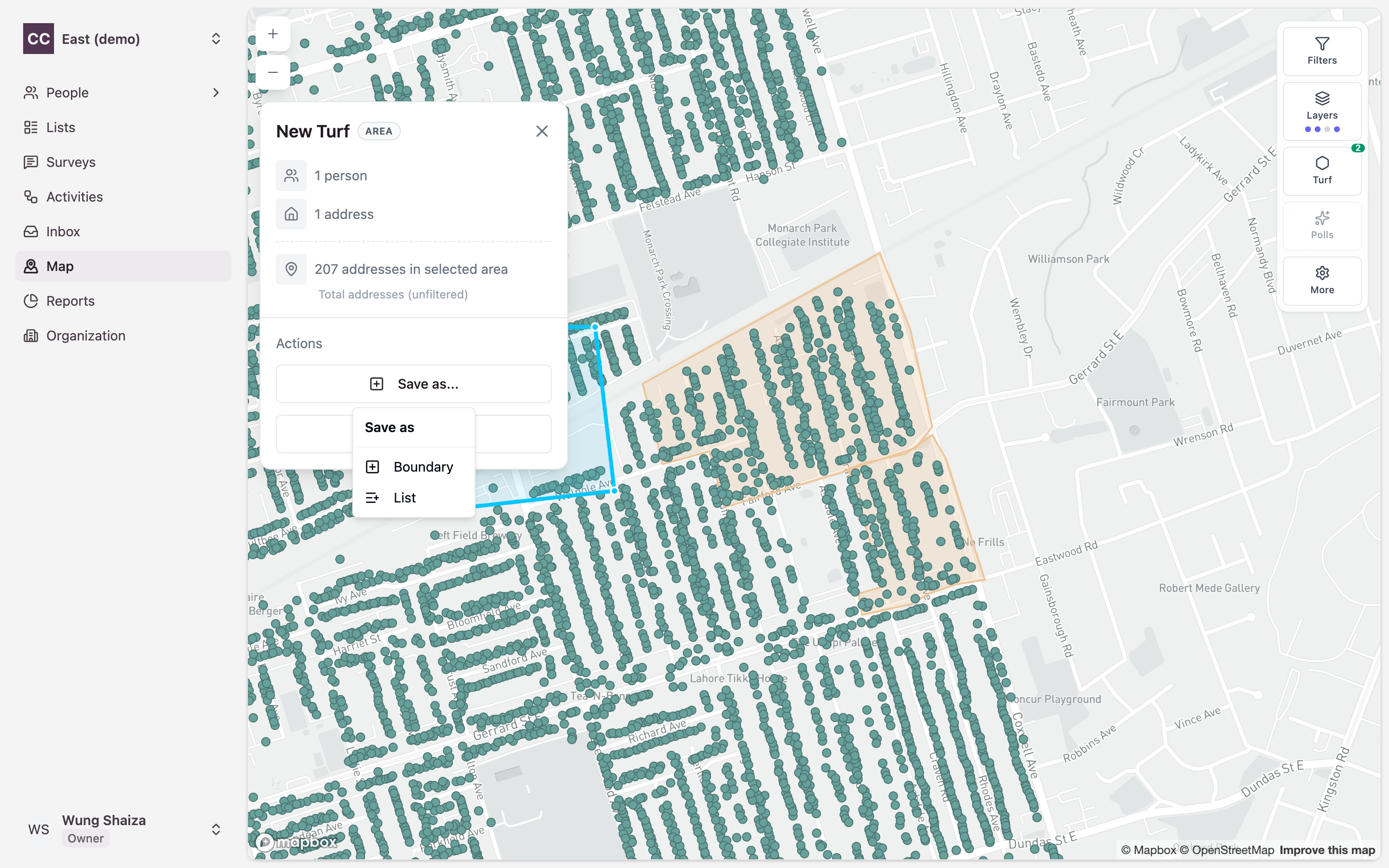
Boundary vs. List: Boundary saves just the shape — perfect for scoping an activity by area. List saves the people inside it as a reusable list instead. To create a poll, choose Boundary.
5. Name and create it
Give the area a clear name (e.g. Central Ajax Canvass Zone) and click Create.
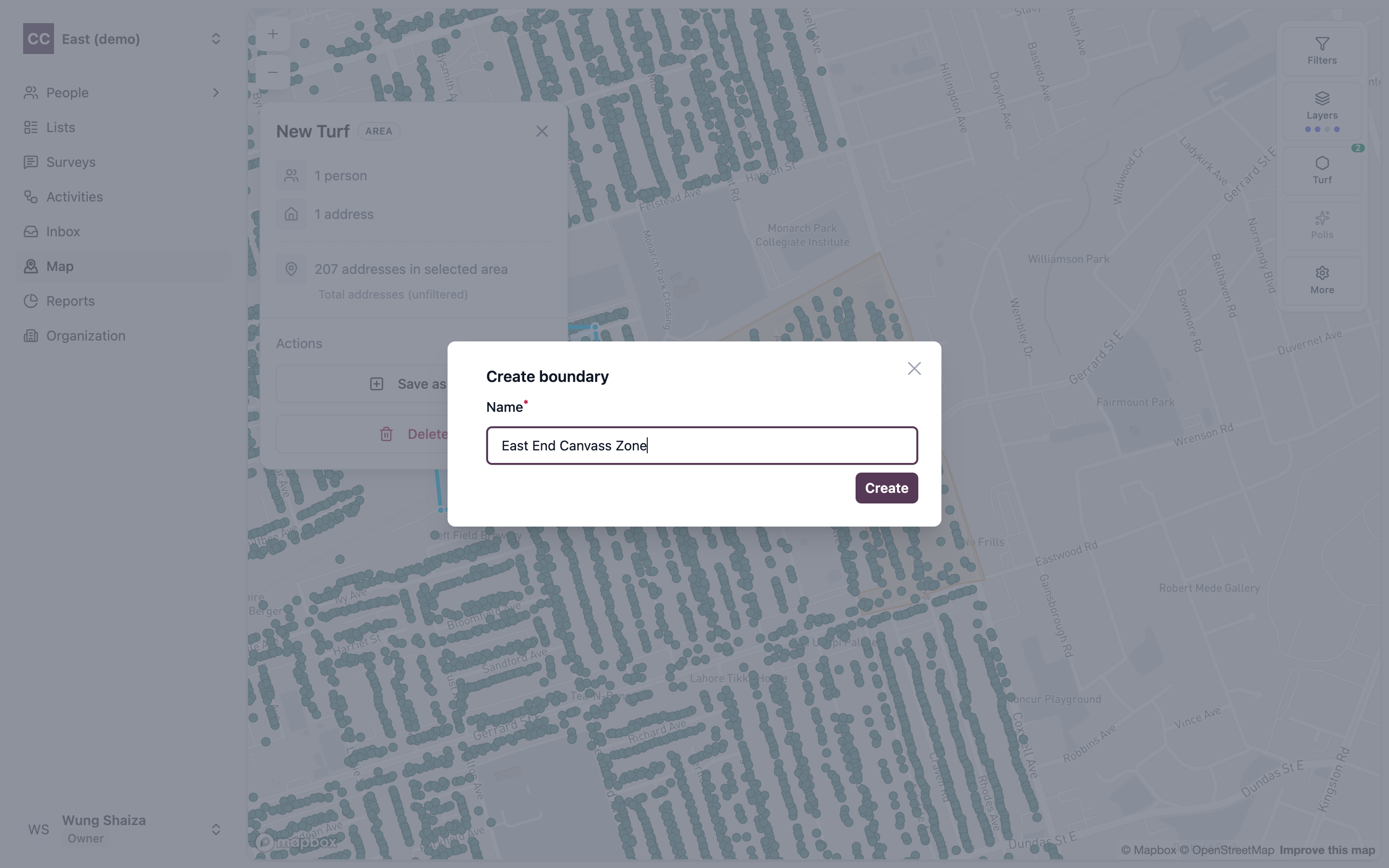
Your poll is saved. The Turf counter in the toolbar goes up by one, and the shape stays on the map, ready to attach to a Field activity — see the poll-based activity workflow.
Poll-based vs. list-based activities
When you create an activity, you choose how to populate it with people, and there are two ways:
- Poll-based — attach a single poll. CampaignCTRL pulls in everyone that poll covers — for a custom-map poll, every person whose address falls inside its boundary; for a custom-file poll, everyone carrying that poll’s number — and adds them as contacts. You don’t pick people one by one; the poll decides who’s included.
- List-based — attach a hand-picked list of people instead. The activity uses exactly the people on that list (optionally expanded to include their household members).
You provide either a poll or a list when creating an activity — never both, and never neither.
graph LR
    P[Poll] --> A[Field Activity]
    A --> C[Everyone the<br/>poll covers]

    style P fill:#e1f5ff,stroke:#0066cc,stroke-width:3px
    style A fill:#fff4e6,stroke:#ff9800,stroke-width:3px
    style C fill:#f5f5f5,stroke:#666,stroke-width:2px
Poll-based activities are only available for Field activities — door-to-door ground work. Call, Text, and GOTV activities use lists instead.
Once the activity is created, it processes in the background: it gathers the matching people, adds them as contacts, and then moves to a ready state so your team can begin working it.
Terms
- Poll — a named grouping of the addresses and people it covers, used as the unit for organising field work. A poll is either a custom-map poll or a custom-file poll.
- Boundary — the outline (polygon) that defines a custom-map poll’s shape on the map.
- Custom-map poll — a poll defined by a shape outlined on the map; a person belongs to it when their address falls inside the outline. Created by drawing it on the map.
- Custom-file poll — a poll with no shape, defined by a poll (polling-division) number carried in your imported people data; a person belongs to it because that number was assigned to them on import.
- Turf — the Map tool you use to draw a poll’s boundary by hand; the saved area becomes a custom-map poll.
Related
- Activities — attach a poll to a Field activity to canvass everyone inside it.
- Lists — the other way to populate an activity, by hand-picking people.
- Canvass an area you draw on the map — turn a saved poll into a ready-to-canvass Field activity, step by step.
- How it fits together — where polls sit in the bigger picture.