Delete an organisation
This guide walks you through deleting an organisation — your campaign’s whole account in CampaignCTRL, with its people, lists, surveys, activities, and team. Deleting one permanently disables it: the organisation and everything in it become inaccessible to you and everyone on the team. It’s an action only an Owner can take.
You might do this to shut down a campaign that’s finished, or to retire a practice or demo org you no longer use. If you only want to step away from an org rather than close it down for the whole team, this is the wrong tool — leave it in place instead.
Deleting an organisation affects your whole team, for good. It permanently disables the organisation, so it and everything in it — people, lists, surveys, activities, and team members — become inaccessible to everyone, with no way to reopen it from the app. Make sure that’s what you intend before you go ahead.
Who can do this
| Action | Who can do it |
|---|---|
| Delete an organisation | Owners only |
Only an Owner sees the Delete organization option — Admins and every other role do not. There’s one Owner per org, and the Owner account itself is protected from deletion (see User roles).
Before you start
- Be sure you’re in the right organisation. The name at the top of the Organization page is the org you’re about to delete. If you belong to more than one, switch using the org menu at the top of the sidebar and confirm the name before you go further.
- Know where you’ll land afterward. When the org is deleted, CampaignCTRL moves you into another organisation you belong to. If this is your only organisation, you’ll be signed out instead.
1. Open your organisation settings
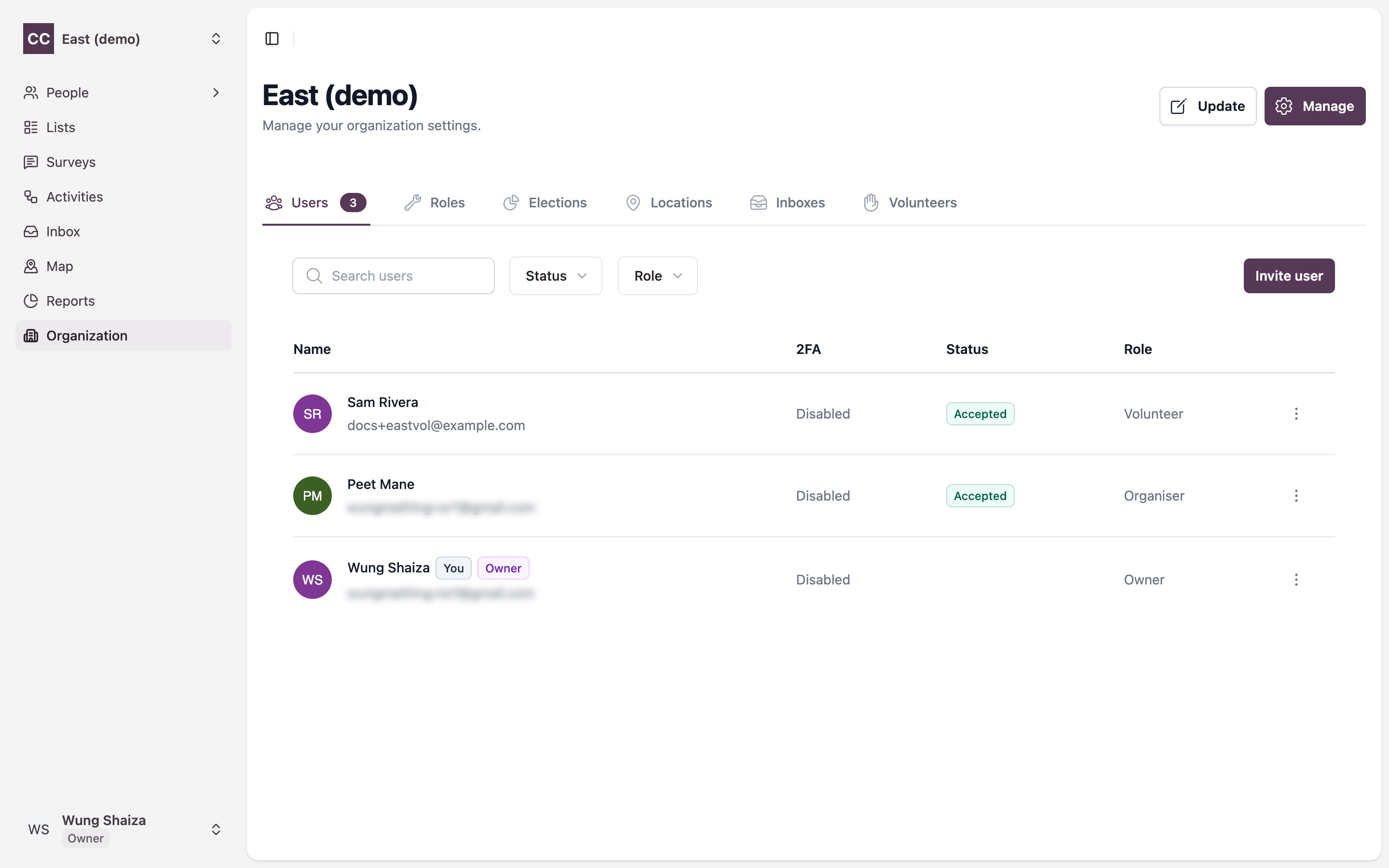
In the left sidebar, click Organization. The page header shows the organisation’s name and a Manage button in the top right.
2. Open Manage Organization
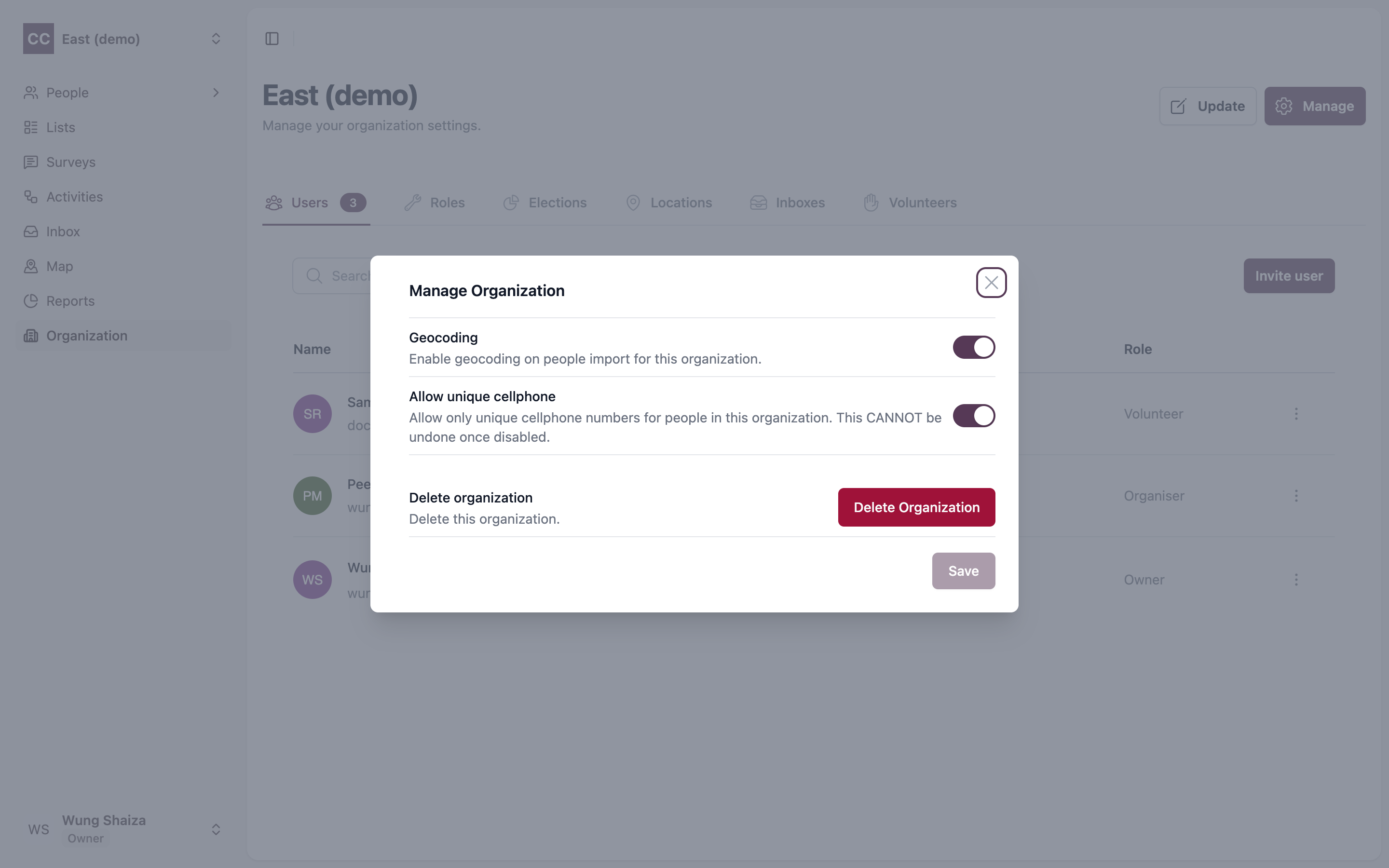
Click Manage to open the Manage Organization dialog. Alongside the Geocoding and Allow unique cellphone settings, an Owner sees a Delete organization section at the bottom with a red Delete Organization button.
3. Delete the organisation
Click Delete Organization, then confirm when the app asks you to. This permanently disables the organisation, making it and everything in it inaccessible.
Changed your mind? Close the dialog before you confirm and the organisation is left exactly as it was — nothing happens until you confirm.
4. What happens next
Once you confirm, CampaignCTRL disables the org and then sorts out where you go:
- You belong to other organisations — it switches you into one of them and reloads the app, so you land in a working org rather than an empty screen.
- This was your only organisation — there’s nowhere left to go, so you’re signed out.
After that, the organisation is no longer available to you or your team.
Related
- User roles — who the Owner is and what only they can do.
- How it fits together — where organisations, lists, and activities sit in the bigger picture.