Run an election-day turnout drive
This guide walks you through creating a Get Out The Vote (GOTV) activity — your election-day push to make sure the people who back you actually turn out and vote.
A GOTV activity starts from a list of people — usually the supporters you’ve already identified — and gives volunteers a simple, household-by-household view for election day: who still needs to vote, and a one-tap way to mark each person as Voted once they do. Unlike a canvass, a GOTV activity doesn’t run a survey. Instead you set up a short set of intentions — the turnout states volunteers choose from, such as Will vote or Needs a ride.
Who can do this
| Action | Permission needed |
|---|---|
| Build a list of supporters | People access |
| Create an activity | Activities → Create |
Owners and admins have this by default. GOTV activities are run by owners and admins; on election day, Captains and Recruiters do the doorstep and phone work. (New to these roles? See User roles.)
Before you start
- Build the list of supporters you’ll turn out. This workflow starts from a list you’ve already saved — usually the people you’ve identified as supporters. If you haven’t made one yet, see Lists → How a list is built — filter or hand-pick people on the People page and save them as a list — then come back here.
- Decide your intentions. A GOTV activity needs at least two intentions — the short set of turnout states volunteers pick from for each person (for example Will vote, Needs a ride, Already voted). Have these in mind before you start. There’s no survey to prepare — turnout tracking takes its place.
1. Open the new-activity form
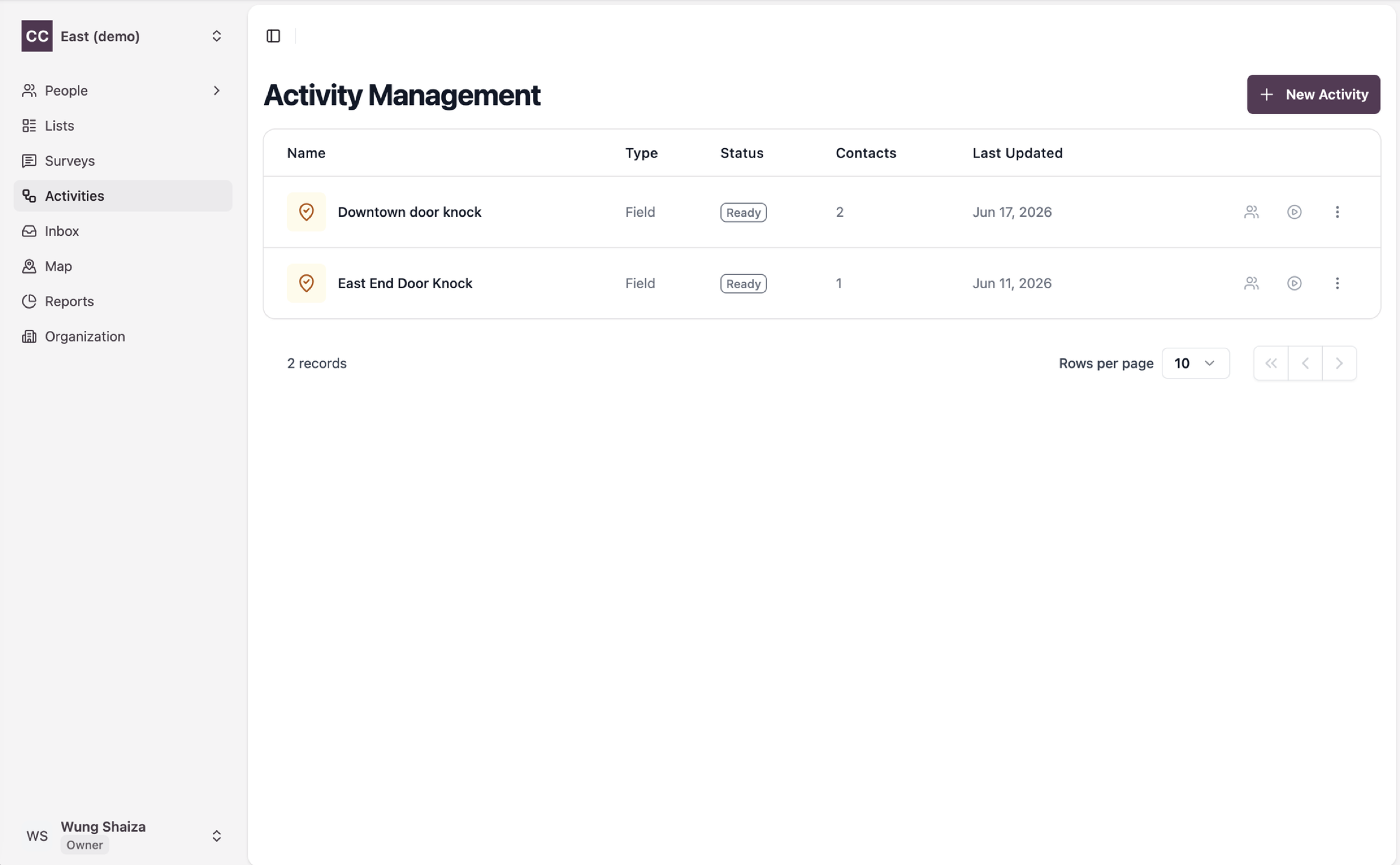
In the sidebar go to Activities, then click New Activity.
2. Pick GOTV as the activity type
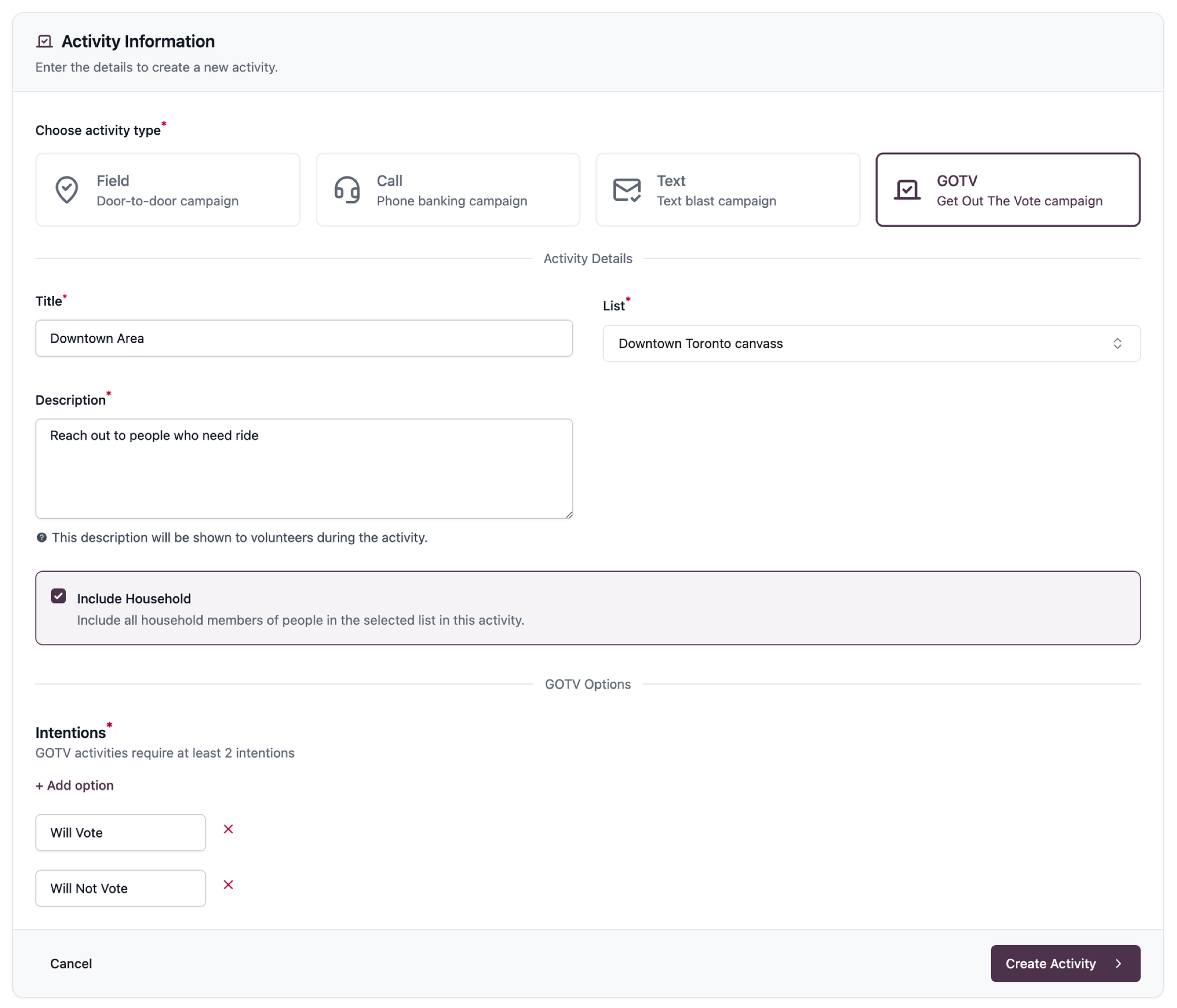
Choose GOTV (Get Out The Vote campaign) as the activity type. A GOTV activity always works from a list, so there’s no map or poll option, and no survey to attach.
3. Choose your list and fill in the details
- Pick your list of supporters from the dropdown — start typing its name to find it.
- Give the activity a Title, and a Description that’s shown to volunteers.
- Optionally turn on Include Household to pull in everyone in each household on the list, not just the named people.
4. Add your intentions
Under GOTV Options, add the intentions volunteers will choose from for each person. You need at least two — click + Add option to add more. These become the dropdown choices volunteers see for every person on election day.
5. Create it
Click Create Activity. CampaignCTRL pulls everyone on the list in as contacts and opens the new activity.
6. Start tracking turnout
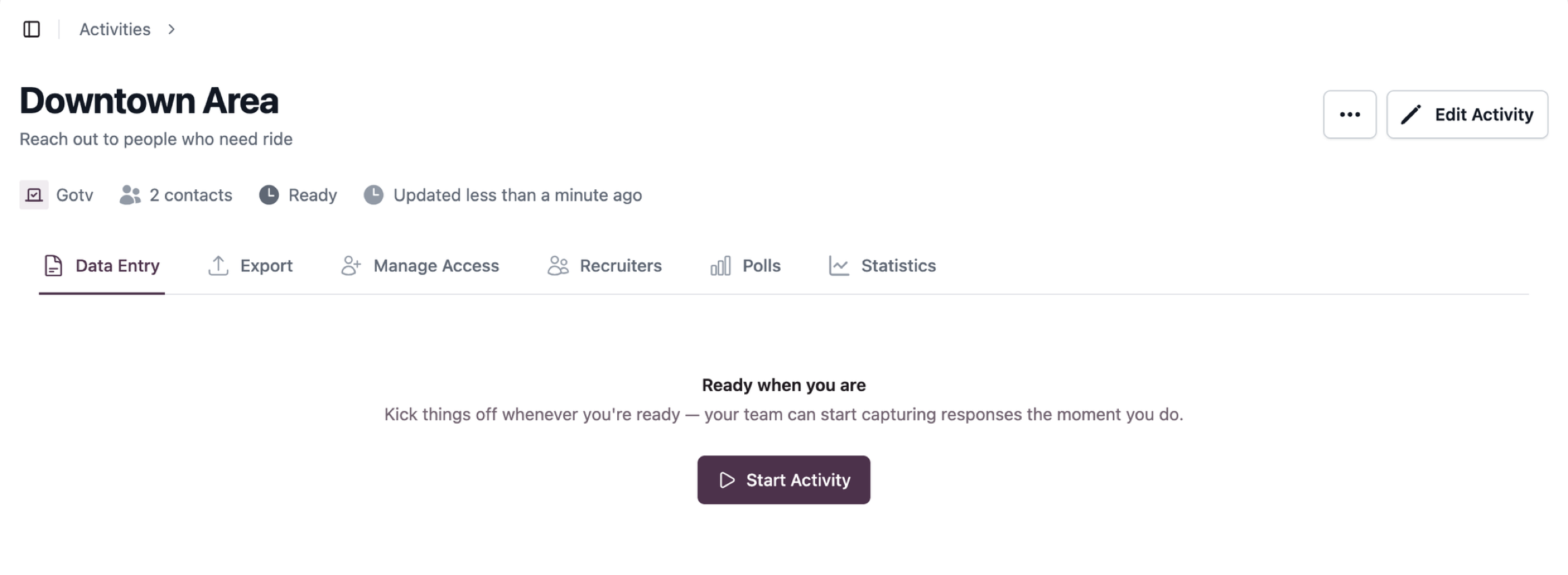
You land on the new activity, opened to its Data Entry tab and marked Ready. When your team is set for election day, click Start Activity. From then on, Data Entry lists every household on your list so volunteers can set each person’s intention and mark them Voted as they head to the polls. Supporters and non-supporters are flagged so your team knows who to prioritise, and your turnout totals climb as the day goes on.
Related
- Activities — how activities work, and the snapshot they take when created.
- Lists — build and manage the set of supporters you turn out.
- Canvass a group of people you choose — the survey-based door-knock, also built from a saved list.
- User roles — the Captains and Recruiters who work a GOTV drive in the field.